

How to Install IPTV on Firestick - Complete Setup Guide 2026
Learn how to set up IPTV on your Amazon Fire TV Stick or Fire TV Cube in under 5 minutes. This step-by-step guide shows you how to install the IPTV player app, configure your subscription, and start streaming 15,000+ live channels instantly.
Video Tutorial Available
Prefer watching? Check out our video guide for visual step-by-step instructions.
href=https://www.youtube.com/watch?v=YOUR_VIDEO_IDtarget="_blank" rel="noopener noreferrer" className="mt-3 inline-block px-5 py-2 bg-red-600 text-white rounded-lg hover:bg-red-700 font-medium transition"Watch Video Tutorial →Step-by-Step Setup
Turn on your Firestick and go to the home screen
Navigate to the search icon (magnifying glass) at the top left
Type Downloader and select it from the results.
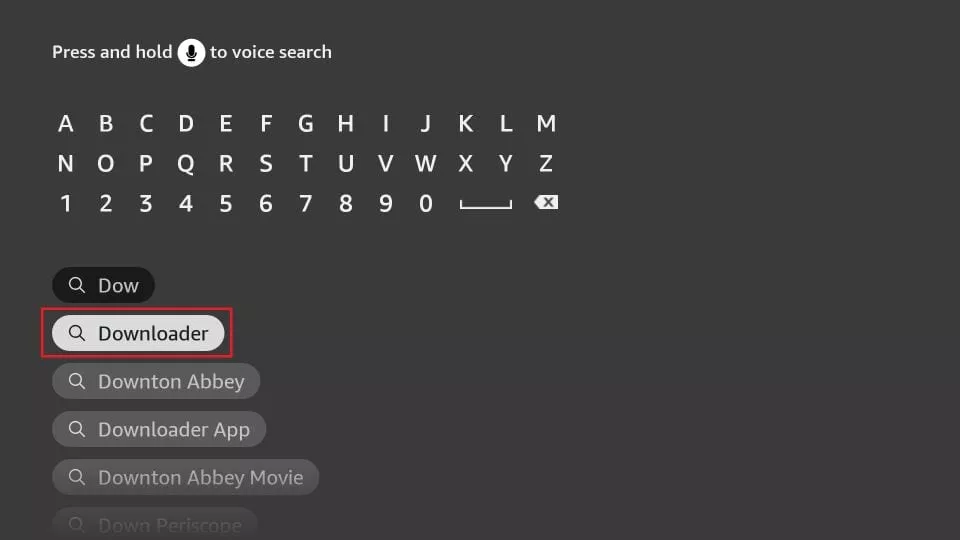
Click Download and then Install.
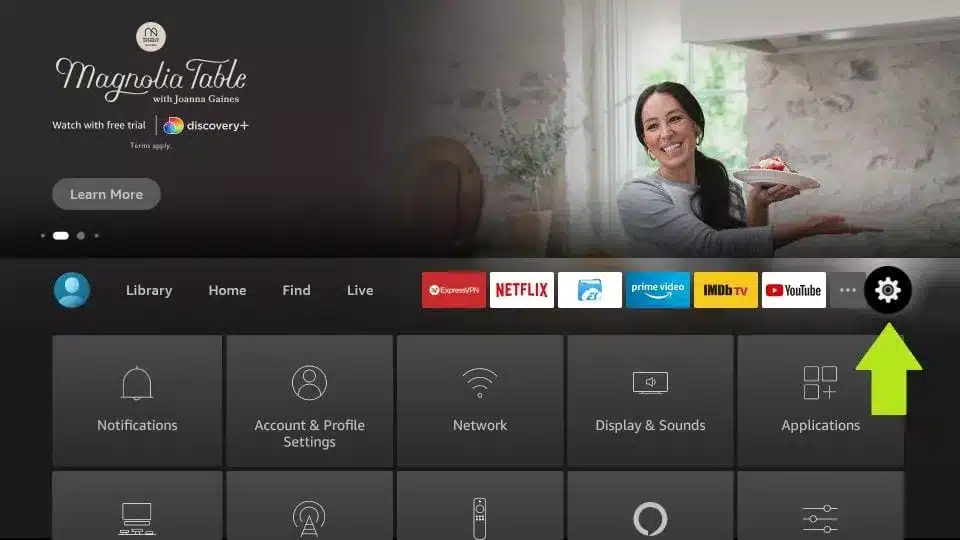
Return to the Home Screen and open Settings.
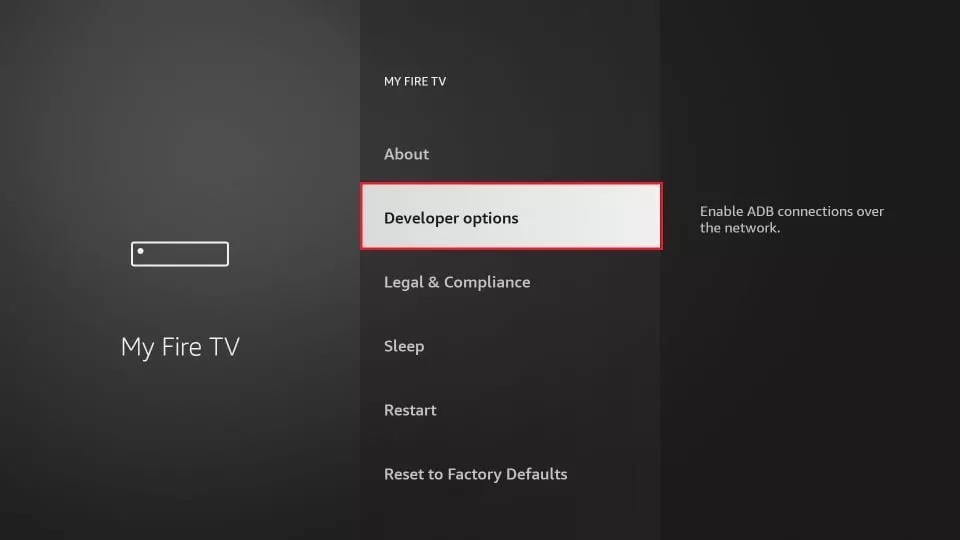
Select My Fire TV → Developer Options.
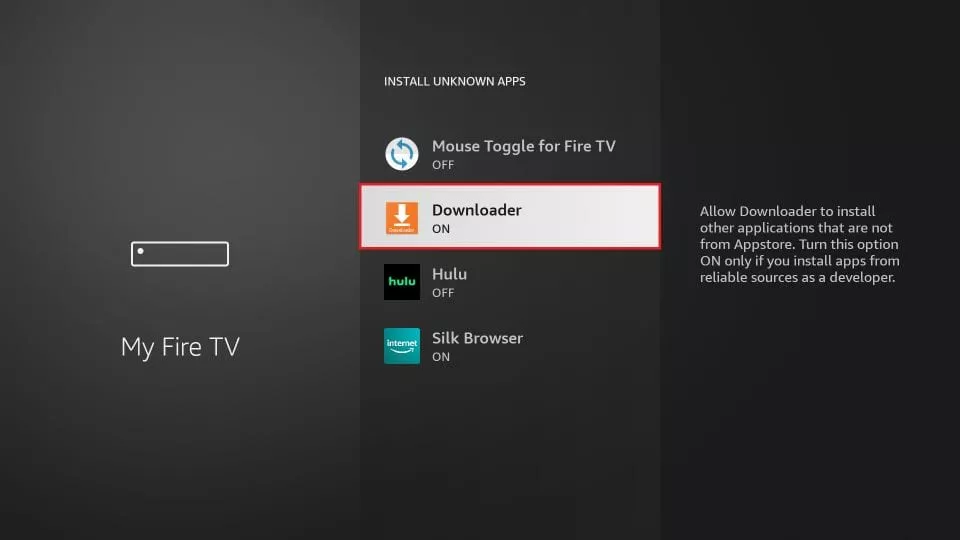
Click Install from Unknown Apps and switch Downloader to ON.
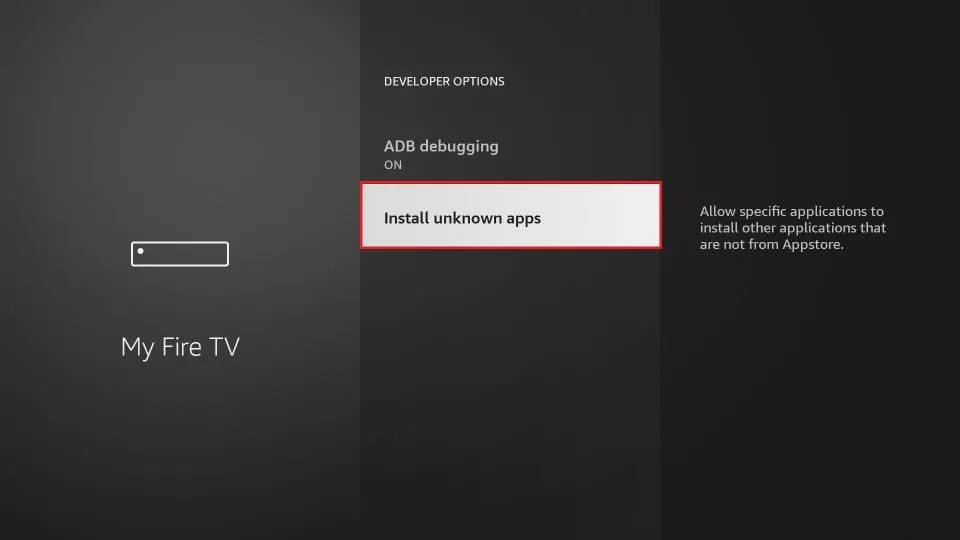
Now your FireStick is ready to install IPTV Smarters Pro and other third-party apps.
Open the Downloader app and click Allow if prompted.
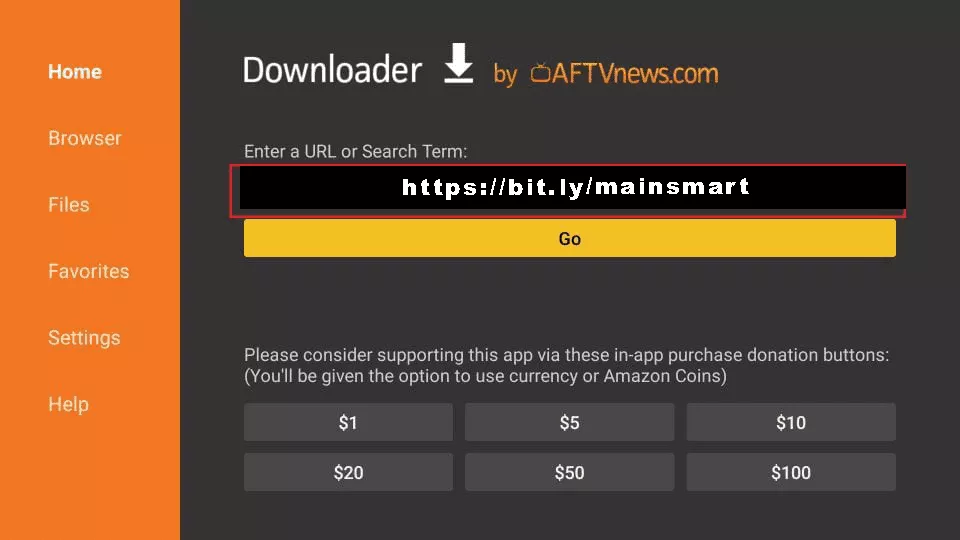
In the URL field, enter: https://bit.ly/mainsmart and click Go.
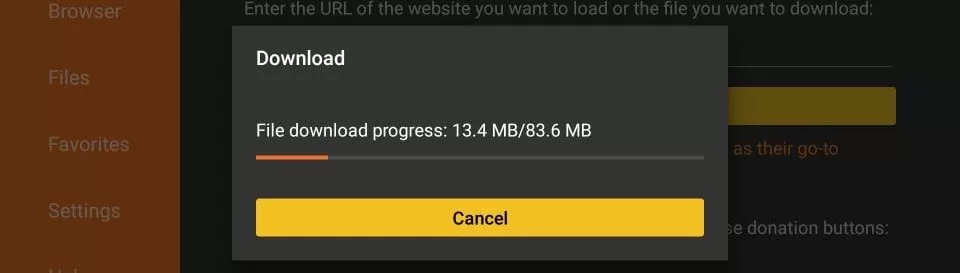
Wait for the app to download and click Install.
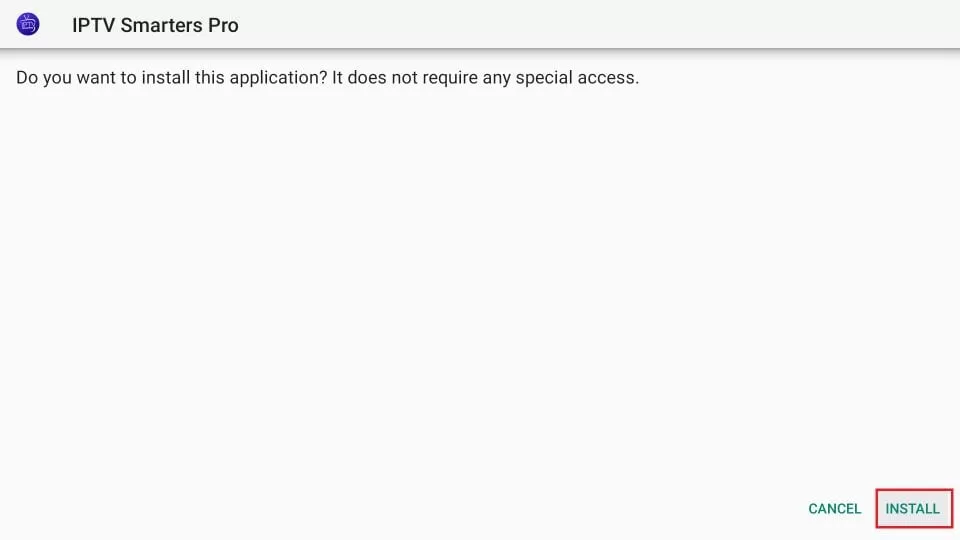
After the download is completed, the Downloader app will run the APK file, and the installation will start. Click Install.
Wait for the installation to finish.
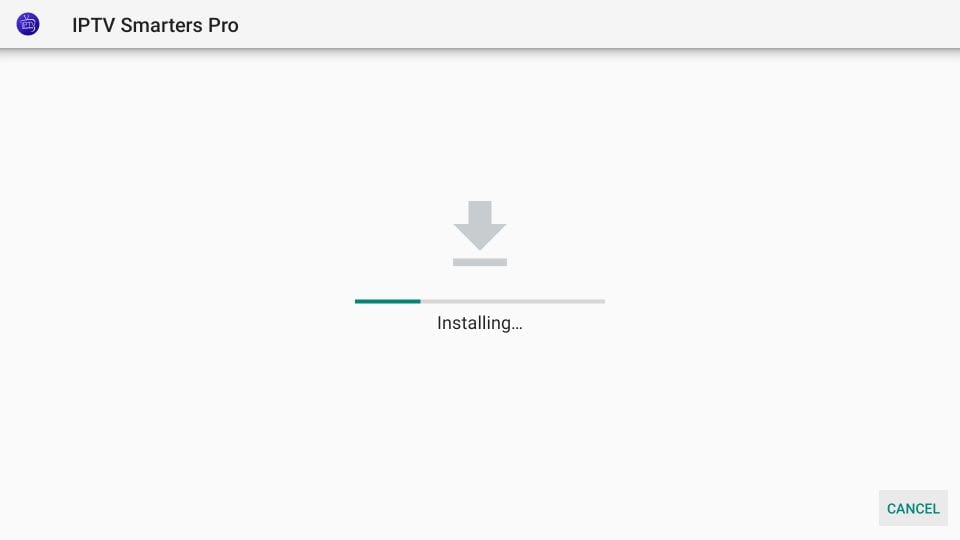
After installation, click Done and then Delete to remove the APK file.
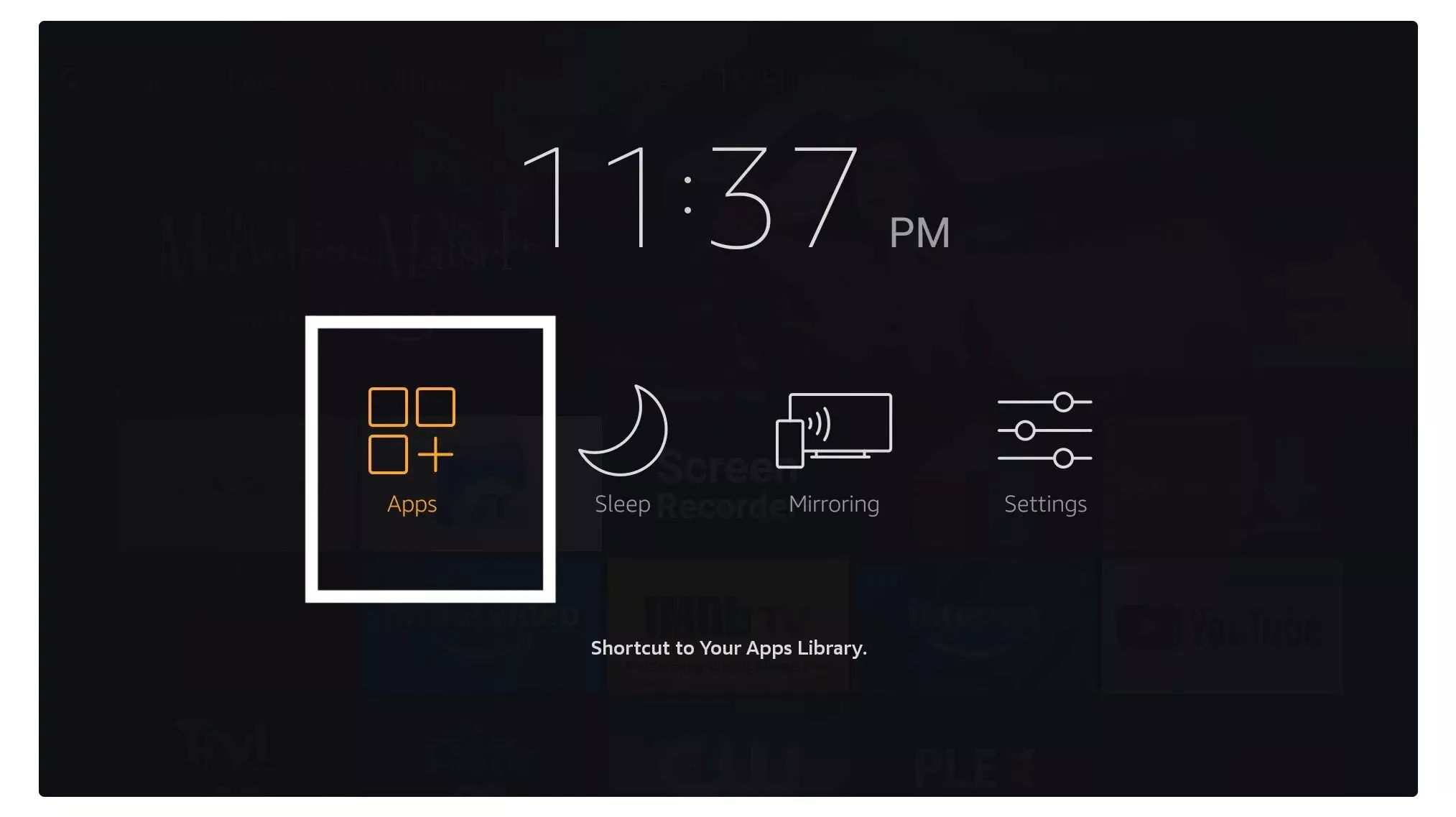
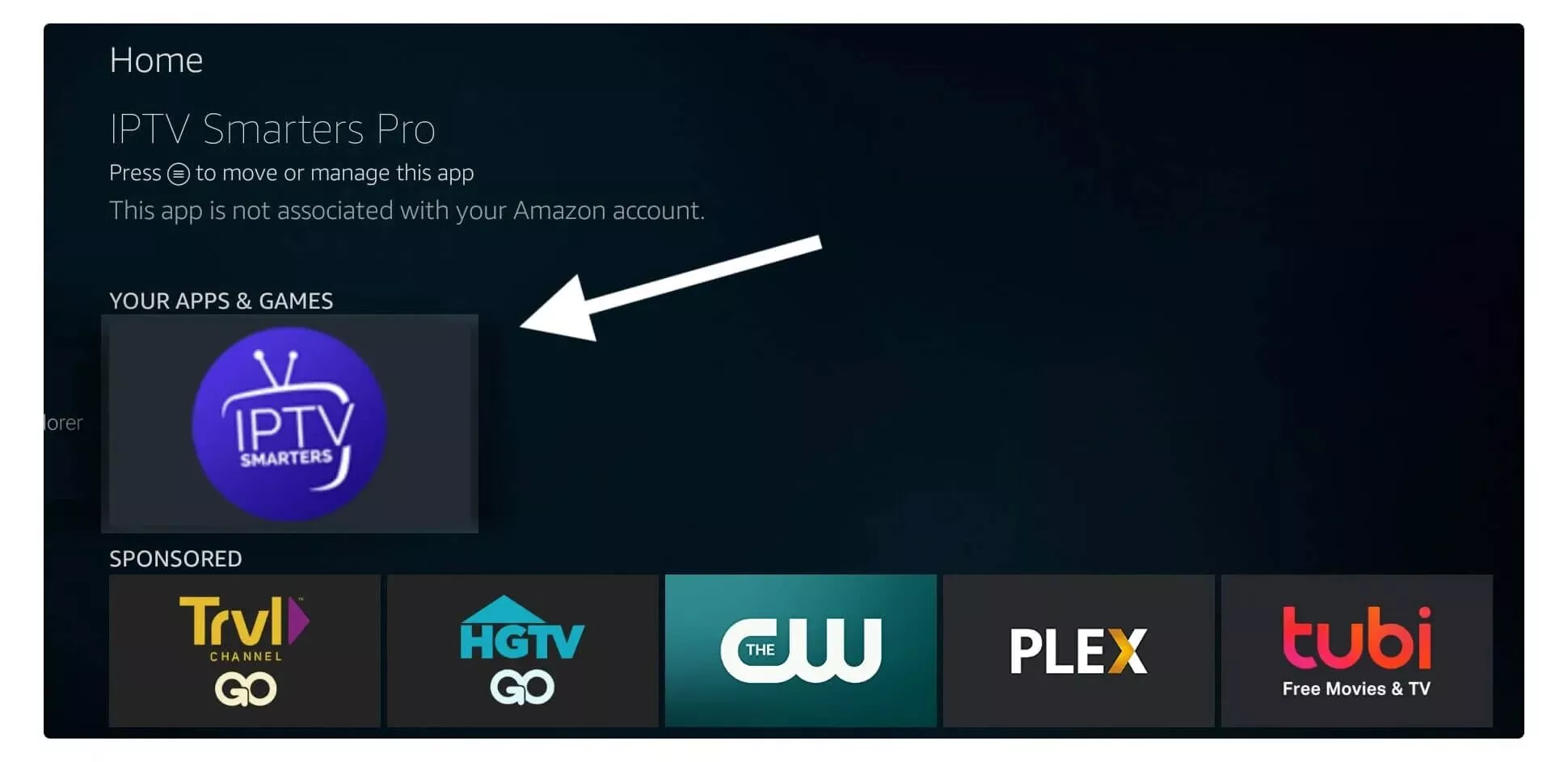
Go to Your Apps & Channels or hold the Home button → select Apps → open IPTV Smarters Pro.
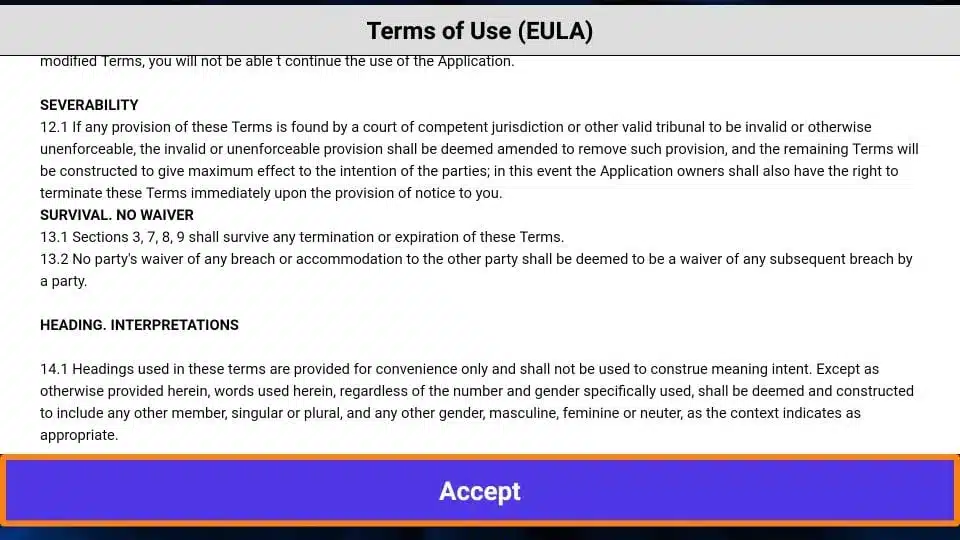
Click Accept to agree to terms.
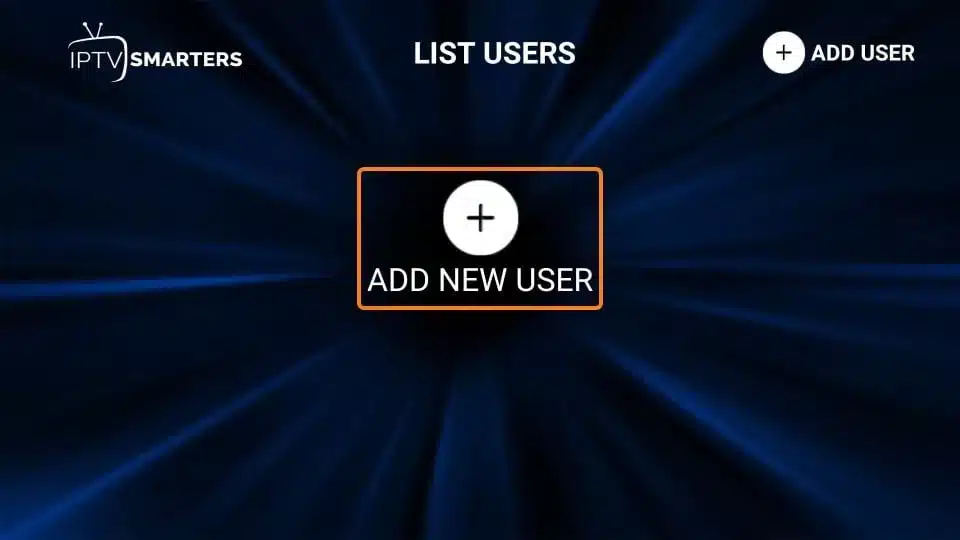
Select Add User to create your profile.
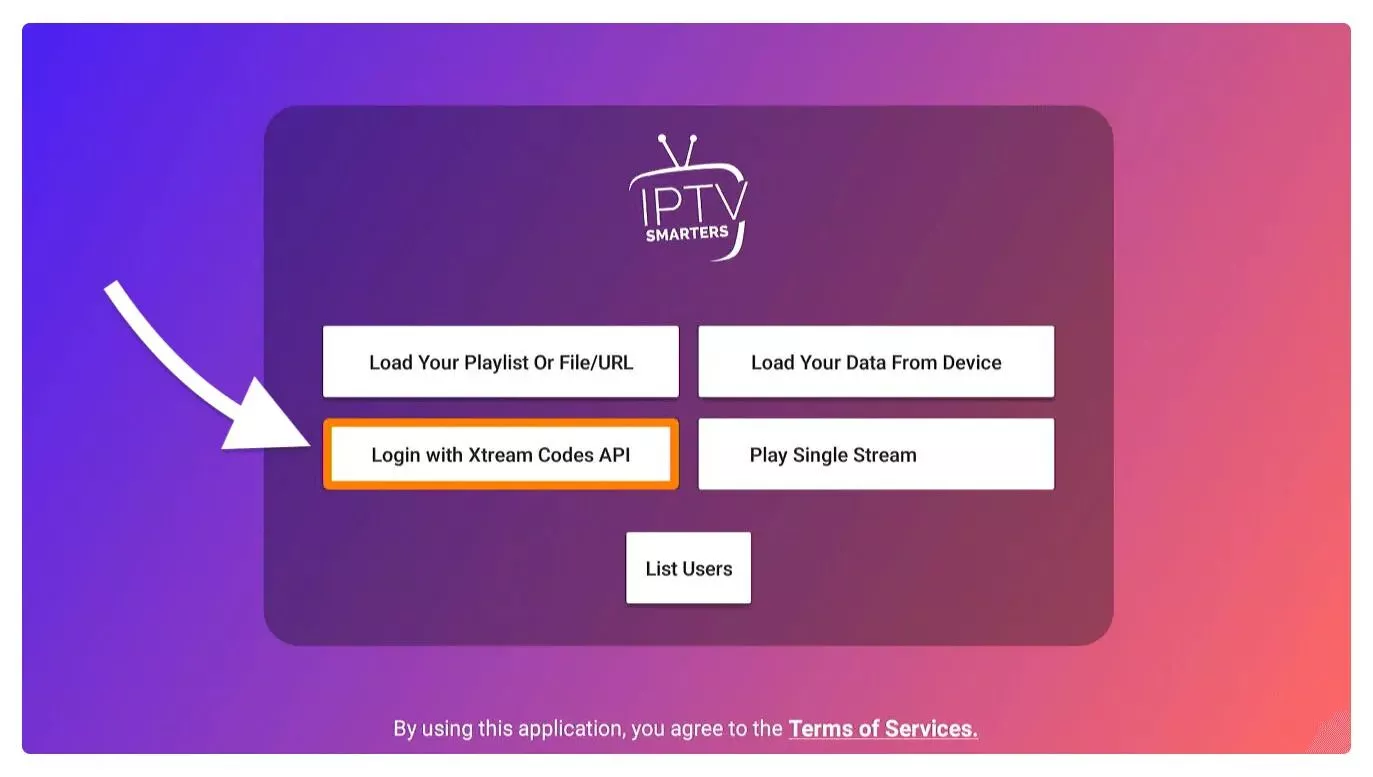
Choose the Login with Xtream Codes API option for faster access and automatic updates.
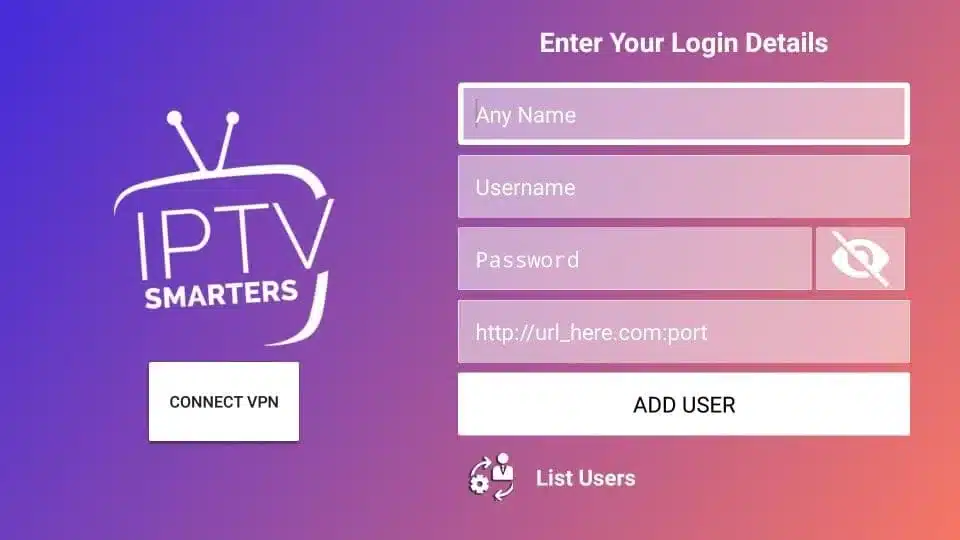
When you click Login with Xtream Codes API, you will see a window to enter your credentials. Enter your name, username, password, and URL, and then click Add User.
✅ Setup Complete!
You should now be able to watch live TV. If you encounter any issues, check the troubleshooting section below or contact our 24/7 support team.
Common Issues & Solutions
⚠️App won't download or install
Solution: Check your Firestick has enough storage (Settings > My Fire TV > About > Storage). Delete unused apps if needed. Ensure you're connected to Wi-Fi.
⚠️Can't find the app in Amazon Appstore
Solution: Search for alternative players like 'TiviMate' or 'GSE Smart IPTV'. If still not found, enable 'Apps from Unknown Sources' in Settings and sideload the app.
⚠️Channels load but won't play
Solution: Test your internet speed (should be 10+ Mbps). Restart your router and Firestick. Try a different channel to isolate the issue.
⚠️EPG/TV Guide is empty
Solution: EPG can take up to 5 minutes to populate on first load. Close and reopen the app. Check if EPG is enabled in app settings.
Frequently Asked Questions
▶Which IPTV app is best for Firestick?
IPTV Smarters Pro, TiviMate, and GSE Smart IPTV are the most popular choices for Firestick. We recommend IPTV Smarters Pro for beginners due to its simple interface and reliability. All are free to download from the Amazon Appstore.
▶Why do I get 'Authorization Failed' or 'Login Error'?
This error occurs when credentials are incorrect. Common causes: extra spaces in username/password, wrong server URL, or typing errors. Copy-paste your credentials from the email to avoid mistakes. If the issue persists after double-checking, contact our 24/7 support.
▶How do I fix buffering and freezing on Firestick?
Buffering is usually caused by slow internet. Solutions: 1) Restart your router and Firestick, 2) Close all background apps, 3) Test your internet speed (need 10+ Mbps), 4) Move router closer to Firestick or use an ethernet adapter, 5) Try a different channel to see if the issue is channel-specific. Contact support if buffering continues.
▶Why is my TV guide (EPG) not showing?
EPG takes 2-5 minutes to load after first login. Close the app completely and reopen it. Go to app settings and ensure 'Load EPG' is enabled. If still missing after 10 minutes, contact support.
▶Can I use multiple IPTV apps on the same Firestick?
Yes! You can install multiple IPTV player apps and test which one you prefer. Your subscription login works on any compatible app.
▶Do I need to pay for the IPTV app?
No, popular IPTV player apps like IPTV Smarters Pro are free. You only pay for your IPTV subscription (the channel service). Some apps offer premium features, but the free version works perfectly for most users.
Still Need Help?
Our support team is available 24/7 to help you get set up